|
29.1 Create a New Job |
  
|
|
29.1 Create a New Job |
|
29.1.1 The Job screen shows you all the Jobs entered in the database. It shows the Job details and the different Tasks, Quote, Invoices and Timesheets entered against a Job.
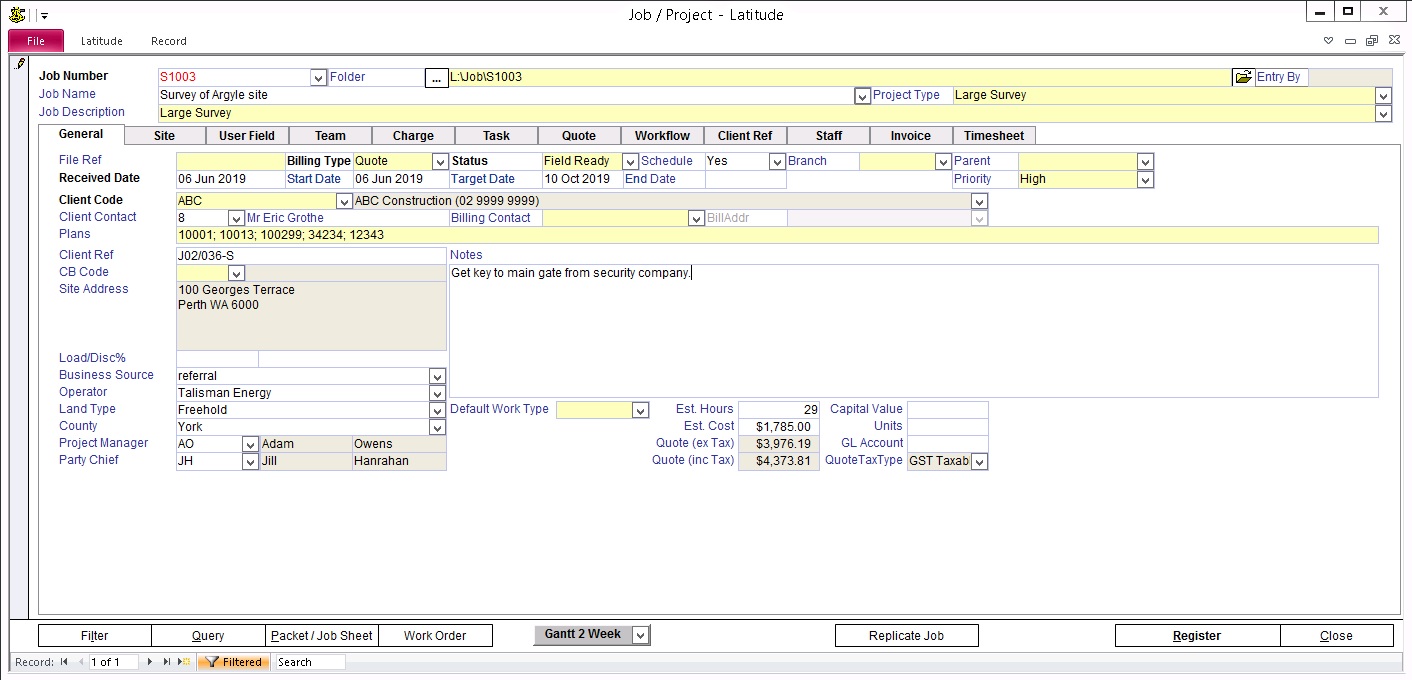
29.1.2 Add a New Job
The recommended way to create a new Job is from the Business Contact screen.
From the Home screen, click 'Business Contact"
Select a Client or Prospect you will be entering the Job for
Click the Job tab and then press the "New Job" button to open the Job screen
If the Job Number you have just entered already exists, then you a prompt if you want to go to the existing record.
If the Job Number does not exist then the cursor will go to the Folder field for you to select the Job folder. You can click on the Job Name and Description and start filling in at least the Mandatory fields ( these are colored Black).
The 'Entry By' field is auto-filled with the Employee Code of the person who entered the job into Latitude.
29.1.4 Replicate from an existing job
To replicate (copy) an existing job to create a new job:
Go to the Business Contact screen, and look for the desired client you want to copy a job from (ie. source job).
In the Job tab, double-click the job number you want to replicate.
In the Job screen after it appears, click the "Replicate Job" button.
A JobCreator dialog appears, see "How Do I Use the JobCreator" for more information.
Enter the required information to create a new job.
Toggle "Same Site / Other Site" option to either use the same site information or not.
Click "Create Job" to create the job.
Job replication copies the following data into the new job:
All job fields excluding the amounts from the source job.
Charge overrides from the source job.
All tasks excluding the dates, actual hours and amounts from the source job.
All quotes excluding the amounts from the source job.
Workflow from the template job linked to the job type selected.
All register items from the template job linked to the job type selected.
)